 Important: Only those features that you have been granted
access to will display. For access to additional features contact your
system administrator.
Important: Only those features that you have been granted
access to will display. For access to additional features contact your
system administrator.
To access SchoolMessenger Settings:
1. Log in as an Admin user.
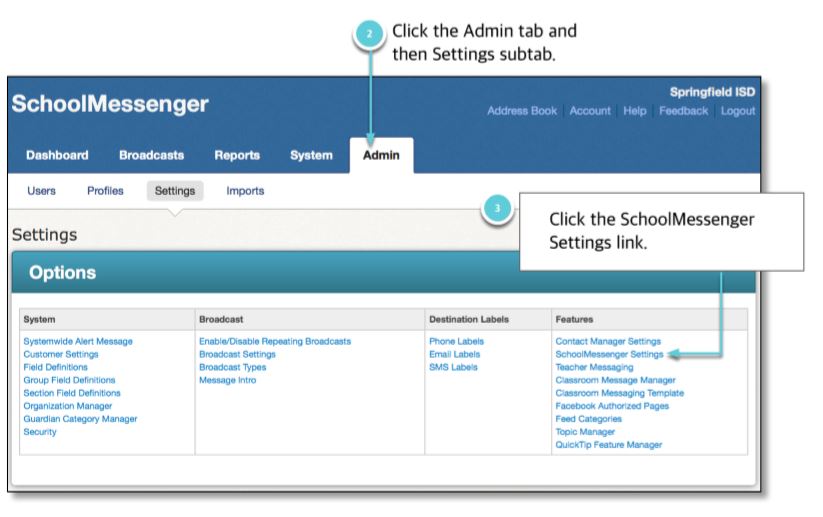
2. Click the Admin tab, and then the Settings subtab.
3. Click SchoolMessenger Settings.
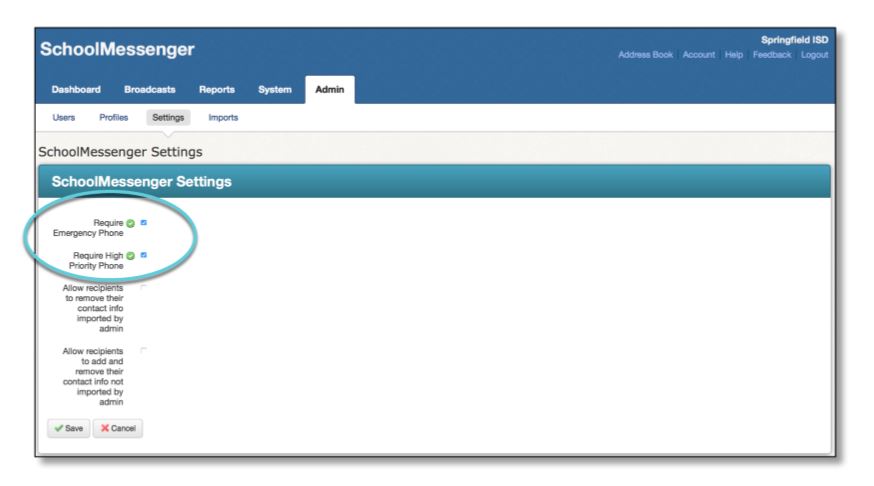
Select the following boxes in order to make it a requirement that users have an Emergency Phone and/or High Priority Phone Number listed. Click Save to save your settings.
Customize the user’s ability to add, edit or delete their contact info quickly and easily. To configure, follow the below steps:
1. Log in as an Admin user.
2. Click the Admin tab, and then the Settings subtab.
3. Click SchoolMessenger Settings.
4. Select your user settings. Options are as follows:
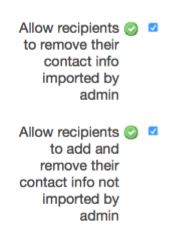
Full Edit Control: User-Added Contact Data √ | Admin-Imported Contact Data √ Selecting both allows the user to have edit control over both contact data they add to their account AND the contact data the admin has imported. |
 |
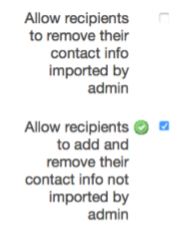
Partial Edit Control: User-Added Contact Data √ | Admin-Imported Contact Data X The user can edit any contact info they’ve added themselves, but cannot edit any of the contact info the admin has imported. |
 |
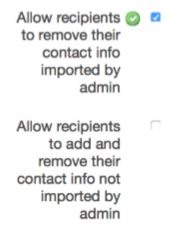
Partial Edit Control: User-Added Contact Data X | Admin-Imported Contact Data √ The user can edit any contact info imported by the admin, but can’t add any of their own contact info. |
 |
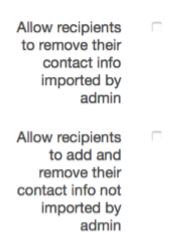
No Edit Control: User-Added Contact Data X | Admin-Imported Contact Data X The user had no edit control over the contacts in their SchoolMessenger App account. |
 |
5. Click Save to save your settings.
©2018 West. Contents may not be reproduced without express written permission.
